How Printable Coloring Pages: Guide to get the best result
Downloading a coloring page is the easy part. What many people don't know is that the final quality of the print — the sharpness of the lines, the whiteness of the paper, the strength of the sheet to hold pencils and markers — depends on some simple settings that most people never adjust. This guide explains step by step how to get the best possible result with the printer you already have at home, regardless of the model or brand.
The Right Paper Makes All the Difference
Standard photocopy paper (75g/m²) is the most common in homes and offices, and works reasonably well for colored pencils. However, it has clear limitations: with alcohol markers, the ink runs through to the bottom sheet; With watercolors or damp watercolor pencils, the paper wrinkles easily.
Recommendations Coloring Page material
- Colored pencils: 80g/m² or 90g/m² paper — the office standard is fine, but 90g produces a noticeably better result.
- Alcohol markers: paper 120g/m² or higher, to prevent ink from bleeding through.
- Watercolor or wet watercolor pencils: paper 160g/m² to 200g/m², ideally textured (called “watercolor paper” or “white cardboard”).
A practical tip: if you only have 80g paper and want to use markers, place two blank sheets of paper underneath the sheet you are coloring — this protects the table and absorbs the ink that passes through.
Printer Settings: What to Adjust Before Printing
Print quality
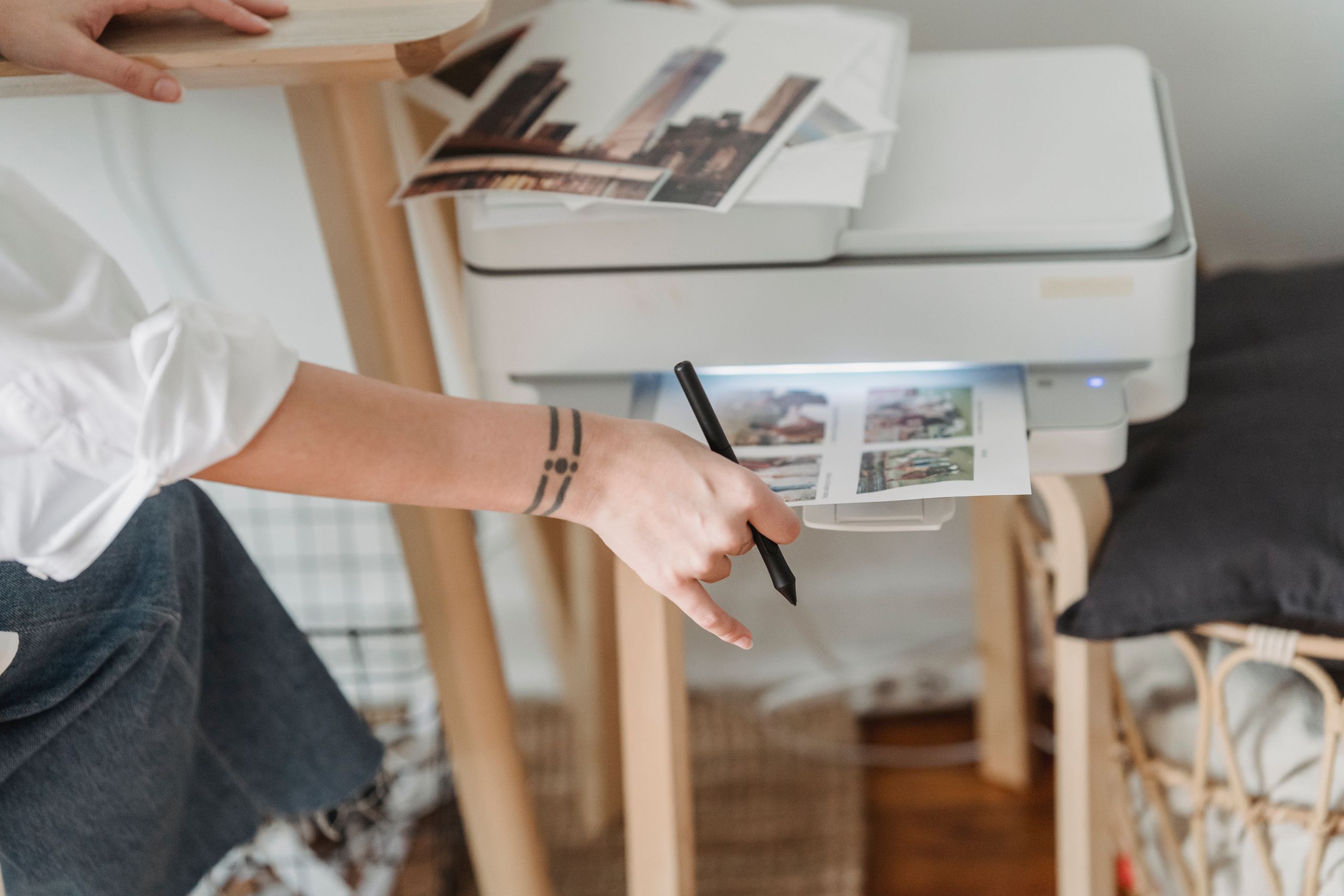
Most printers are set by default to “Normal” or “Draft” to save ink. Coloring Page pages, where the sharpness of the lines is essential, always select “High” or “Best” quality. The difference in ink consumption is minimal (the lines are black and take up little area), but the impact on the sharpness of the contours is significant.
Paper type
In the printer settings, select the paper type that matches what you are using. For 80-90g paper, “Plain Paper” or “Copy Paper” is correct. For thicker paper, select “Presentation Paper” or “Heavy Paper” — this adjusts the feed speed and amount of ink applied, preventing the paper from becoming soggy or misfeeding.
Scale and margins
Printable the design to occupy the entire A4 sheet, activate the “Fit to page” or “No margins” option if available. If you prefer to keep a margin (useful when the child will hold the sheet while coloring), set symmetrical margins of 1 cm on all sides. Avoid printing with a scale less than 90% — very small lines are difficult Coloring Page without leaving the outlines.
Inkjet Printer vs. Laser: Which Is Best Coloring Page Pages
Laser printers produce sharper, drier lines immediately after printing, which makes them slightly superior for designs that will be colored with alcohol markers (since laser ink does not run off with the alcohol in the markers, unlike inkjet ink). However, for colored pencils, the difference is practically imperceptible — any home printer produces a satisfactory result.
If you have an inkjet printer and are going to use markers, let the sheet dry for 2 to 3 minutes after printing before you start coloring, so that the printing ink is completely set.
How Printable Multiple Designs on the Same Sheet
For younger children, who prefer smaller drawings, or to create an activity sheet with various motifs, it is possible Printable 2 or 4 drawings per A4 sheet. The simplest way is to use the “Multiple pages per sheet” option in the print settings — available on most operating systems without the need for additional software. For 2 designs per sheet, select “2 per page”; for 4, select “4 per page”.
Common Problems and How to Solve Them
Lines come out streaky or irregular
This problem indicates that one or more ink cartridges have clogged nozzles. The solution is to run the automatic ink cartridge cleaning (available in the printer settings, under “Maintenance”) and print a test page. If the problem persists after cleaning twice, the cartridge may need to be replaced.
Paper becomes wrinkled after printing
It happens when the paper is damp (stored in a place with high humidity) or when the amount of ink applied is excessive. Make sure the paper is dry before printing and select the correct paper option in the settings — the wrong paper can cause the printer to apply too much ink.
The design is cut off at the edges
Indicates that the margins of the PDF file are larger than the printer's printable area. The solution is to activate “Reduce Printable area” or “Fit to page” in the PDF reader's print options (Adobe Reader, Foxit, or the operating system's native viewer).
Printing in A3 Size: Is It Worth It?
For younger children (2-5 years old), with less motor control, printing in A3 (twice the size of A4) can be a good option: larger areas are easier Coloring Page without leaving the outlines, and the result is more visually impactful. If you don't have an A3 printer, many local stationery stores and printing services accept PDF files for individual printing at a very low cost.
Frequently Asked Questions
Can I print drawings in ink save mode?
You can, but the result will be thinner and less sharp lines. For informal or draft use it's fine; for a more careful coloring session, it's worth turning off the economy mode.
Is it better Printable in black or in some color?
Always in pure black, so that the contours have maximum contrast. Make sure “Black and White” or “Grayscale” is selected in the color settings — printing in color mode uses color ink cartridges unnecessarily to reproduce black, running them out faster.
What is the minimum resolution Printable a quality drawing?
Printable on A4, the file must have at least 150 DPI (dots per inch) at that size. Most quality PDF drawings already respect this minimum; Low-resolution PNG or JPG files may be pixelated if the original file is less than 1200 x 1700 pixels.
Conclusion
Printing a coloring page well is as important as choosing the right one. With the appropriate paper for the material you are going to use, maximum print quality and well-adjusted margins, the result is much better than printing with the default settings — and makes a real difference in the coloring experience, for both children and adults.